
Only about a third of SaaS platforms let you give clients a read‑only view of their data. If you run a multi‑tenant setup, that feature can make or break your client relationships. Clients want to see their metrics without touching your backend. You want to keep your data safe. In this guide, we walk you through exactly how to add client read‑only dashboards in your SaaS product. You’ll learn how to set up roles, configure access, share links, embed dashboards, and lock it all down with SSO. By the end, you’ll have a clear path to giving clients the visibility they need without sacrificing security.
Step 1: Define Access Levels and Roles for Client Dashboards
Before touching any settings, you need to decide what “read‑only” actually means for your clients. Most SaaS tools support at least three basic roles: admin, editor, and viewer. A viewer role usually means the user can s but cannot change anything. They cannot edit data, add widgets, or share the dashboard with others. That is the typical read‑only access you want for clients.
But you might need more granular levels. For example, some clients may need to filter data by date or region without altering the underlying metrics. Others might need to export a PDF of the dashboard for internal meetings. Decide which actions are safe to allow. Write down a matrix: for each role, list the permissions it includes. This matrix becomes the blueprint for your configuration.
If you have multiple client tiers (basic vs. premium), you may want separate roles for each. A basic client might only see a summary dashboard. A premium client could see detailed drill‑downs and even schedule email reports. Plan these now , it saves rework later.
Real‑world example: An agency using Donely to manage AI agents for clients can create a “Client Viewer” role that shows only agent status, task completion, and integration metrics. The client never sees internal settings, billing, or other clients’ data. This is a typical pattern in multi‑tenant setups.
For a deeper look at multi‑tenant architecture, on Best Multi-Tenant SaaS Platforms for Client Instances. It covers how to set up isolated environments for each client, which is a prerequisite for secure read‑only dashboards.
A good reference for role‑based access control concepts is Wikipedia’s article on RBAC. It explains the standard model that most SaaS platforms follow.
Step 2: Configure Role‑Based Access Control (RBAC) for Dashboards
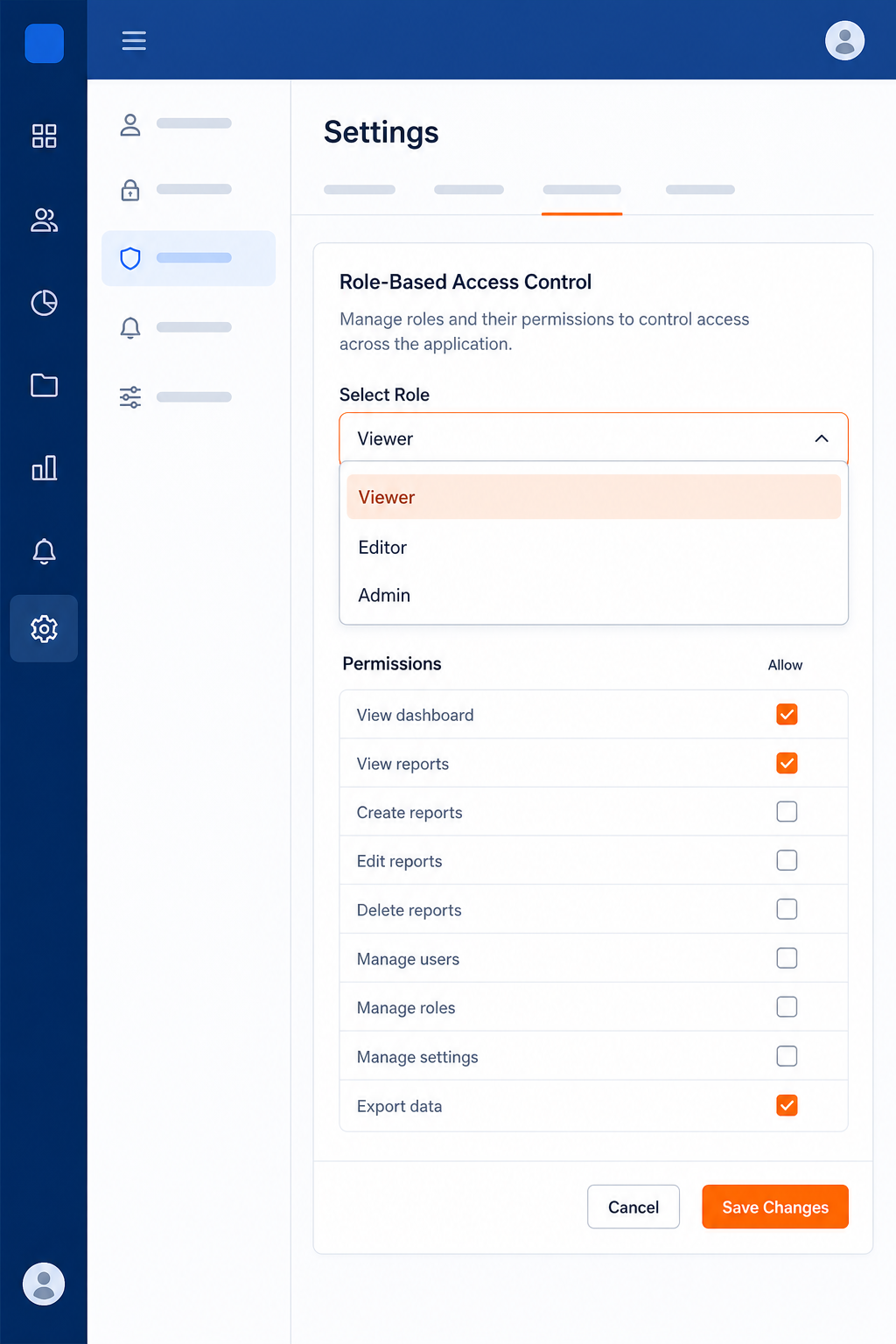
Now that you have defined roles, it’s time to implement them inside your application. Most SaaS platforms offer a permissions or roles section in the admin dashboard. You’ll typically find it under “Settings” or “Security.”
Create a new role called “Client Viewer” (or whatever you named it). Then assign the specific dashboard permissions: view dashboard, view widgets, optionally export data. Make sure to uncheck all edit, delete, share, and manage permissions. Some platforms also let you restrict access to specific dashboards or data sets , that is even better.
If your SaaS uses a database, you may need to set row‑level security. This ensures that a client only sees rows belonging to their tenant. For example, if you store data in a shared table with a tenant_id column, create a policy that filters rows based on the logged‑in user’s tenant. This is critical for multi‑tenant isolation.
Donely includes built‑in RBAC that lets you assign per‑instance roles. You can give a client read‑only access to their specific AI agent dashboard while your team retains full control. No custom coding required.
To dive deeper into data isolation, read How to Build Per-Client Isolated Data and Credentials for SaaS. It walks through tenancy models and credential segregation, which complements your RBAC setup.
Step 3: Share Dashboards via Private Links or Guest Access
Not every client wants to create a user account. Some just want a link they can open in their browser. Private links and guest access are two common ways to give read‑only dashboard access without a full user setup.
Private links are URLs with a unique token. You generate them per dashboard and share with the client. The link usually does not require login. But you can set an expiration date and limit the number of views. This is great for one‑time reports or weekly updates.
Guest access is more like a limited user account. The guest can log in with an email and a one‑time passcode, then see only the dashboards you’ve assigned. Guests cannot access other parts of your app. This is better for ongoing relationships where the client needs regular access.
Both methods can be secure if you enforce HTTPS, use short‑lived tokens, and log access. Also, never expose your API keys or admin endpoints through these links.
Some platforms, including Donely, offer both options. You can generate a private share link with an optional password and expiry, or invite a guest user with role‑based access. The choice depends on whether you want the client to have a persistent identity (guest) or a disposable link.
Agencies often use private links to send automated weekly reports to clients. The client clicks the link, sees their dashboard, and the link expires after the week. This reduces management overhead.
Step 4: Embed Dashboards into Your SaaS Product

Sometimes you want the dashboard to live inside your own application. Embedding is the way to go. You pull a dashboard from your analytics or reporting tool and display it inside a page that your client already uses. This creates a smooth experience.
The most common technique is an iframe. You generate a share URL from your dashboard tool (like Metabase, Grafana, or a custom BI solution) and place it inside an<iframe>tag on your client’s portal page. Make sure the iframe supports cross‑origin requests and that your dashboard tool allows embedding on your domain. Set thesandboxattribute to restrict what the iframe can do.
Security is important. Use signed URLs or token authentication to prevent unauthorized access to the embedded content. Many dashboard tools offer an API to generate temporary tokens tied to a specific user and tenant. That way, even if someone inspects the page and copies the iframe URL, they cannot access it without a valid token.
Donely’s approach is to provide a secure embed endpoint that automatically respects the viewer’s RBAC permissions. You can embed a client’s AI agent dashboard into your own app with a single line of code, and it stays scoped to that client.
For a complete look at managing multiple instances from one dashboard, see Best Single Dashboard to Manage Multiple SaaS Instances. It covers how to build a unified view for both you and your clients.
Step 5: Implement Single Sign‑On (SSO) for Smooth Access
If your clients are enterprises, they probably expect SSO. They want their employees to log in once using their company identity provider (like Google Workspace or Okta) and then access the dashboard without another password. SSO also simplifies user management for you , you don’t need to reset passwords or handle MFA per client.
To add SSO, you need to integrate with an identity provider. Many SaaS platforms support SAML 2.0 or OpenID Connect. You’ll configure a connection per client, mapping their IdP’s attributes to user roles in your system. Some tools offer a self‑service SSO setup where client admins can configure the connection themselves, reducing your workload.
For example, Auth0 provides a Self‑Service SSO feature. You create a profile that defines which IdPs are allowed, generate a ticket (a magic URL), and send it to the client admin. They follow the steps to connect their IdP. Once done, users from that company can log in to your app and access the dashboard with their corporate credentials. This approach is detailed in Auth0’s guide on self‑service SSO, which we used as a reference.
After SSO is configured, enforce it on the dashboard access. When a user logs in via SSO, their role should be automatically assigned (e.g., viewer). This prevents them from accidentally getting admin access.
Donely supports SSO integration with any SAML 2.0 or OIDC provider. Once a client sets up SSO, their team members can log in and instantly see their read‑only dashboard without extra steps.
Step 6: Optimize Performance and Ensure Security
A read‑only dashboard needs to be fast and secure. Performance matters because clients judge your product’s quality by how quickly their data loads. Security matters because you’re exposing sensitive data outside your own team.
For performance, cache dashboard data aggressively. If the data updates once a day, you don’t need to hit the database on every page load. Use a CDN to serve static assets of the dashboard. Optimize queries: if your dashboard shows aggregate metrics, precompute them in a summary table. For real‑time data, consider using WebSockets or server‑sent events only for the specific metrics that need it.
Security starts with a strong Content Security Policy (CSP). CSP prevents XSS attacks by controlling which resources can load on your page. For embedded dashboards, specify the allowed sources for scripts, styles, and frames. Also, use HTTPS everywhere and set theX-Frame-Options: SAMEORIGINheader if you only embed from your own domain.
According to MDN’s documentation on Content Security Policy, a well‑crafted CSP can block many common attacks. For example, you can forbid inline scripts and only allow trusted CDNs.
Finally, log all access to client dashboards. Know who viewed what and when. If a client reports a data discrepancy, you’ll have an audit trail. Donely includes audit logging for every dashboard view, so you can always trace access.
Frequently Asked Questions
How do I make sure a client sees only their own data in a read‑only dashboard?
Use multi‑tenant data isolation. Store each client’s data with a unique tenant ID and enforce row‑level security in your database queries. Role‑based access control (RBAC) then ensures the client viewer role only retrieves rows with that tenant ID. Additionally, when generating dashboard URLs or tokens, embed the tenant context so the dashboard tool filters accordingly. Test with a dummy client account to verify no cross‑tenant data appears.
Can I give read‑only access without creating a user account?
Yes, through private links or guest access. Private links are shareable URLs with an embedded token that doesn’t require login. You can set expiration and usage limits. Guest access creates a lightweight account with limited permissions, often using email verification. Both are suitable for clients who don’t want to manage another set of credentials. Choose private links for temporary or automated report sharing, and guest access for ongoing relationships.
What’s the best way to embed a dashboard from an external tool?
Use iframes with signed URLs or tokens. Most BI tools (like Metabase, Grafana, or Tableau) provide embed options. Generate a URL that includes an authentication parameter tied to the client’s session. Set the iframe’ssandboxattribute to restrict form submissions and script execution. Enforce a Content Security Policy that only allows your domain and the BI tool’s domain. Monitor the embedding logs for any unauthorized access attempts.
How can I add SSO for client dashboard access?
Integrate with a SAML 2.0 or OIDC identity provider. Offer a self‑service SSO setup where client admins configure their IdP. Once SSO is established, automatically assign the client viewer role to authenticated users from that domain. Use the IdP’s attributes (like group membership) to determine which dashboards they see. Test with a test IdP to ensure the role mapping works before rolling out to clients.
How do I prevent clients from accessing other clients’ data via shared links?
Never use a static URL. Generate a unique, short‑lived token per client per dashboard. Include the tenant ID in the token payload and validate it server‑side on every request. Use a random, hard‑to‑guess token string. Enable access logging and audit logs. If you must share a link without login, add an optional password. Set expiration to limit exposure. Rotate tokens periodically.
What performance optimizations should I make for client dashboards?
Cache the dashboard data and assets. Use a CDN for static files (JS, CSS). Pre‑compute metrics that don’t change frequently and store them in a summary table. For real‑time needs, use incremental refresh only for the most volatile metrics. Optimize database queries with proper indexing. Consider lazy‑loading widgets so the dashboard renders quickly. Monitor load times and set alerts for slow pages.
Is there a way to white‑label the dashboard for my clients?
Yes, many dashboard tools allow custom branding. You can upload a client’s logo, set their brand colors, and use a custom domain. Some platforms, like Donely, offer white‑label options where the dashboard shows your brand to the client, not the underlying tool’s brand. This makes the experience feel like part of your product. White‑labeling is especially popular among agencies and custom SaaS providers.
How do I handle revoked access when a client leaves?
Immediately disable their user account or delete their guest access. If using private links, invalidate the token so it no longer works. In SSO setups, sync with the IdP’s deprovisioning process if possible. Have a script that forces logout for all sessions of that client. Audit log all access attempts after revocation. Also remove their data from cache and CDN. Communicate with the client about the change to avoid confusion.
Conclusion
Adding read‑only dashboards for clients doesn’t have to be complicated. Start by defining clear access levels, then configure RBAC to enforce them. Share dashboards via private links or guest access for quick wins. Embed them into your product for a smooth client experience. Implement SSO to meet enterprise expectations, and always optimize for performance and security.
The key is to give clients visibility without giving away control. With the right approach, you can turn your dashboard into a competitive advantage , clients feel informed, your data stays safe, and your team spends less time answering questions.
If you’re building or scaling a multi‑tenant SaaS product, explore how Donely handles client read‑only dashboards, RBAC, and SSO out of the box. It’s designed for teams that want to ship fast without compromising on security.
For further reading, on SaaS Deployment Checklist for Secure Client Isolation. It covers the infrastructure side of keeping client data separate.